
How to choose different recipients for All OK and SOS
A reassurance update and an SOS have different purposes. Separate recipients can reduce decisions at the wrong moment, but they need approved contacts, regular review and a clear fallback.
Start with what the signal means
All OK reassures, so a small group or subset may be enough. SOS asks for wider attention according to the plan you agreed.
Before choosing names, say what each recipient should do. To separate receiving from responsibility, see the protocol for who receives and who acts.
Configure All OK for a circle, subset or group
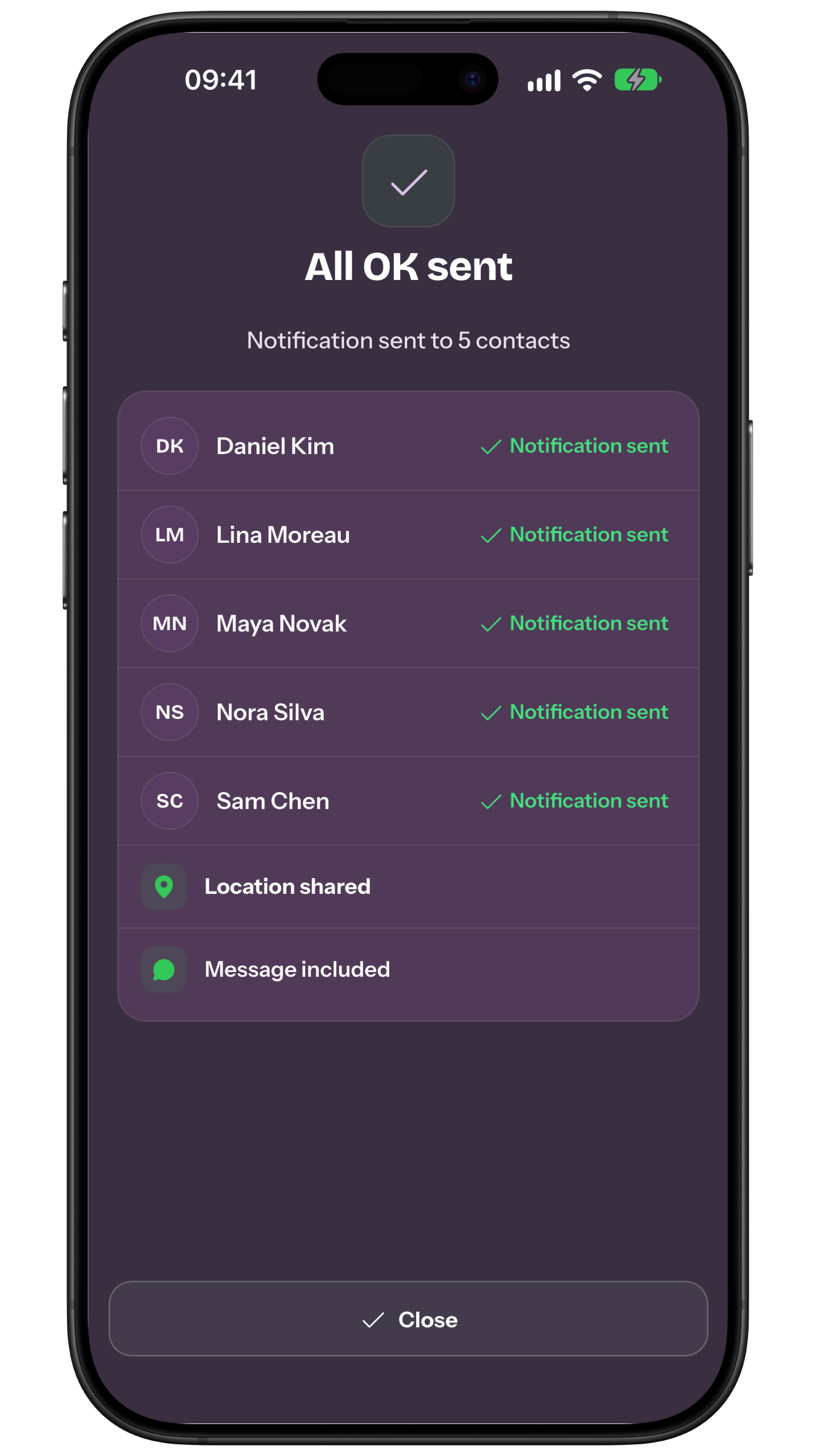
In the All OK flow, use the available circle, select specific people or choose a saved group. A subset can fit a shared return trip, while the full circle may fit a result everyone is waiting for.
Saved groups for All OK are a Premium feature. Do not confuse an in-app group with an external chat: check names, purpose, message and location before confirmation.
Keep SOS tied to the global preference
To choose SOS recipients, open Settings > SOS recipients and save approved contacts. That preference is the baseline for the action and SOS widgets, so it does not need rebuilding each time you tap.
Choosing SOS recipients does not require Premium, unlike creating and reusing saved groups for All OK. Review the list when a number, relationship or availability changes.
In the 2.3 preview, opening Recipients during the countdown pauses sending. For SOS, change people for this one signal without changing the global Settings list. All OK remembers the confirmed choice only when you send; cancelling does not save edits. Widgets and Watch use saved choices and do not offer this editor.
Understand the SOS list fallback
If the SOS preference no longer contains valid approved contacts, the app returns to the available circle. If the circle also has no valid contacts, there is no personal network to alert.
Fallback protects against an old list, not against delivery failure. After a contact leaves or becomes invalid, check the outcome and agree a call, SMS or another person as well.
Check widgets before relying on them
The SOS widget uses the same global SOS recipients and its dedicated message and location settings. The All OK widget can have its own recipients or group, message and location.
Widgets prepare the route in the app and show confirmation; they do not send secretly. For the difference between a visible action and its full route, see the safety action within reach on Home.
Review with an announced rehearsal
Check approved contacts, alerts, messages, permissions, optional location and the meaning of each signal. Run a declared test with real plan recipients without calling public services.
Ask recipients what they saw and who they would expect to act. Repeat after a new phone, circle change or routine change. To choose a small, current circle, see the guide to choosing recipients during urgency.
Frequently asked questions
Do All OK and SOS need the same recipients?
No. SOS starts from the global preference; the 2.3 preview allows a one-send override without rewriting it. All OK can use people or Premium groups and remember the choice after sending.
Are saved All OK groups free?
No. Creating and reusing recipient groups for All OK requires Premium. Replying to a signal you receive is a separate matter.
Does the SOS widget keep a separate list?
No. It uses global SOS recipients. Its settings cover message and location, while the All OK widget can have its own recipients or group.
Sources consulted
Technical and safety information was checked against the following official sources.
Editorial guide from My Safe Circle, checked on 9 September 2026 against the manual and published features. All OK can use the circle, a subset or a group; SOS uses the global Settings preference and falls back to the circle if that list is no longer valid. My Safe Circle flows rechecked against the code and manual on 9 October 2026; the indicated 2.3 changes remain a preview.
RECIPIENTS, ACTION, BACKUP
Prepare the route before the tap.
Separate All OK, SOS and widgets, then test the fallback.
Explore My Safe CircleMy Safe Circle coordinates signals with approved contacts. It is not an emergency service or medical device, does not detect events automatically and cannot guarantee delivery, reading, a reply or action.