
My Safe Circle 2.0: clearer sending, receipts and choices
The 2.0 family makes a safety signal easier to follow: prepare the people to contact, confirm the action and check its outcome. This guide explains what to practise and where to configure it, without treating a sent notification as a person’s response.
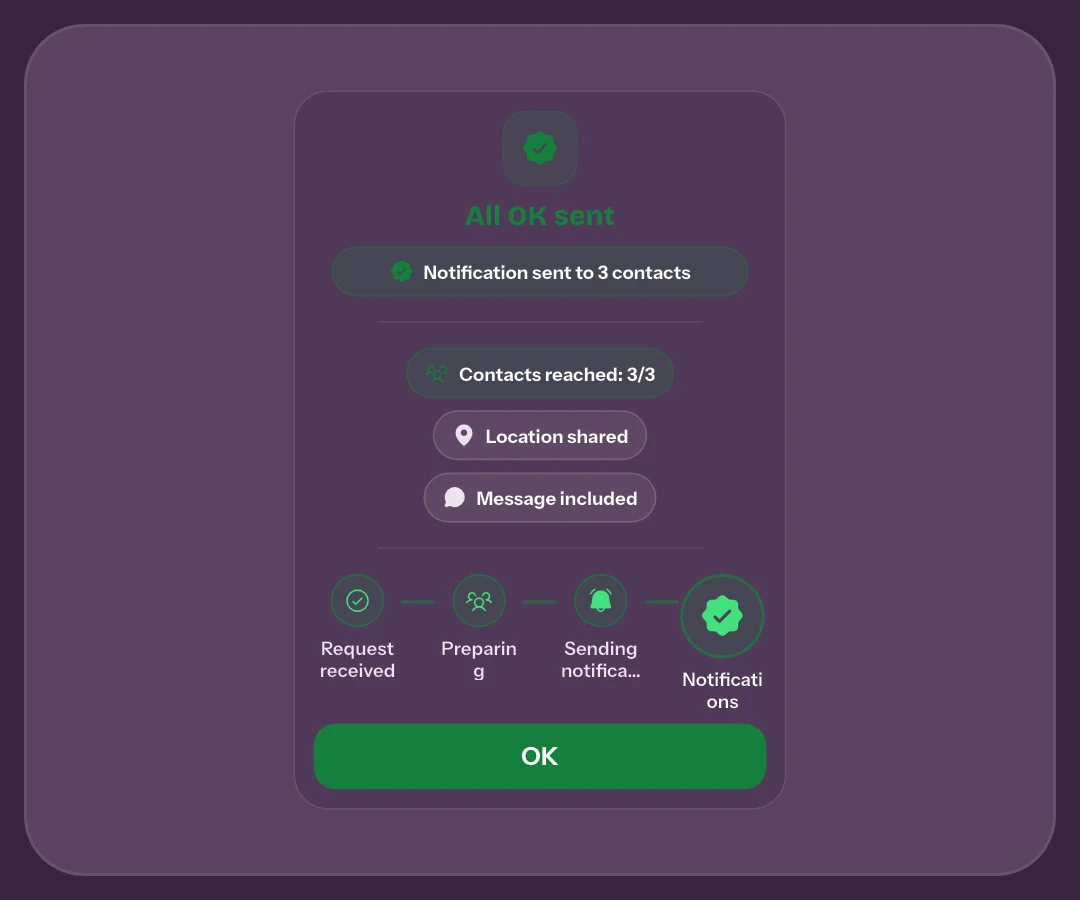
Follow a send when connectivity changes
After confirmation, SOS and All OK are saved on the device before sending is attempted. Without connectivity, the request remains pending and the app can retry when the network and operating system allow it. Reopening the app helps check the command without deliberately creating another signal.
The first test after updating
After updating, do more than watch an animation: check the final result and agree on a test All OK with your recipients. Background work has no guaranteed completion time, and force-closing the app can interfere. See the agreed test guide for a practical sequence.
A receipt describes sending, not a human response
The receipt separates preparation, server request, notifications and outcome. A partial result needs attention to the recipients involved; an unconfirmed outcome calls for checking, rather than assuming success or failure. The Inbox lets you revisit received updates.
What the result really confirms
Ask what the result actually confirms. Acceptance by the notification service does not prove reading or make a contact responsible for helping. Outcomes for each recipient are covered in the version 2.2 article.
Prepare messages and recipients before you are rushed
Quick-message lists separate All OK phrases from SOS phrases. Prepare short context such as an arrival or a request to call. SOS recipient settings differ from your All OK selection, and saved groups require Premium.
The aim is to make stable decisions beforehand, while keeping control of each send. Review your circle regularly and avoid sensitive details in templates. Later interfaces move some options into the countdown: the current confirmation guide explains which preferences remain saved.
Widgets, routines and the 2.0 family
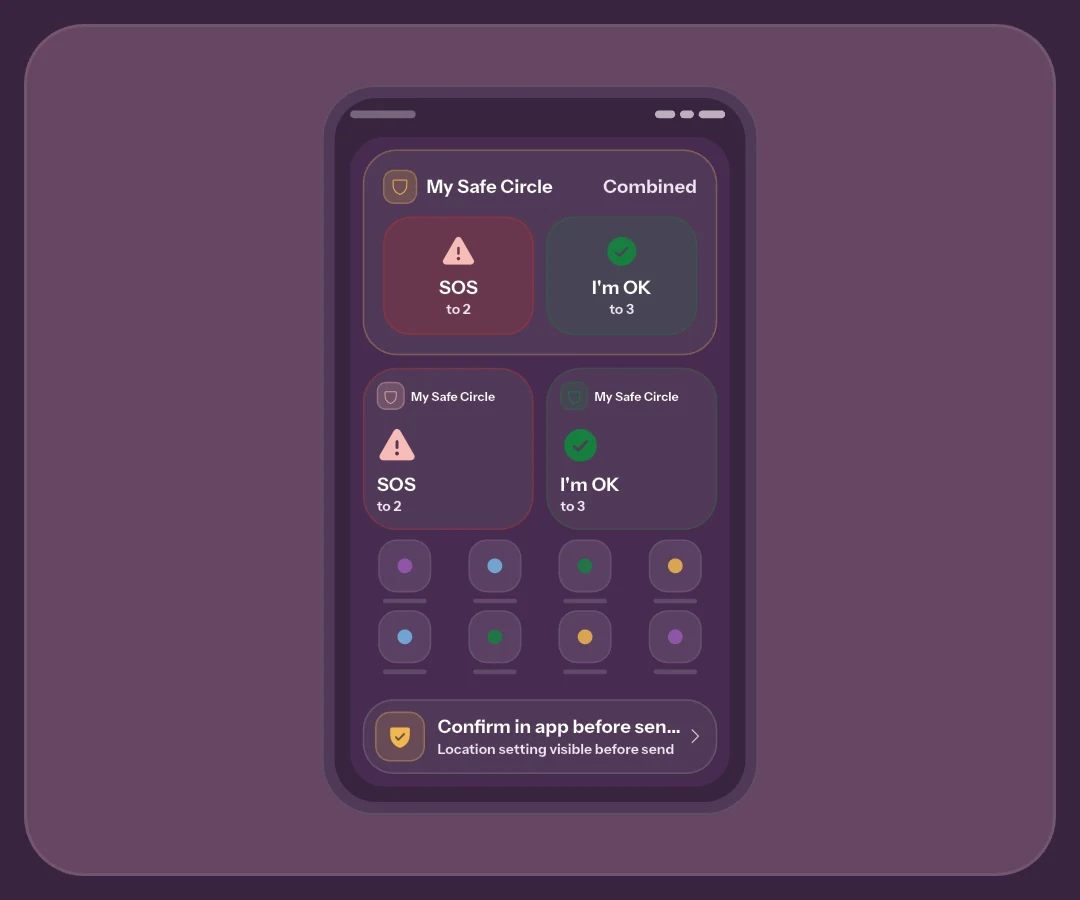
Widgets prepare actions from the phone’s Home Screen; check the sending flow in the app. Recurring reminders add days, a time and a response window, and activate after the invited person approves. Creating routines requires Premium; receiving and answering remain free.
The 2.0 family also includes iOS 2.0.2’s Critical Alerts update. It needs appropriate configuration and permission, and does not guarantee every SOS will sound. Apple Watch arrives with 2.1. Check installed version, platform and available controls before relying on a feature.
Frequently asked questions
Does 2.0 automatically start live location?
No. A safety signal and live session are separate actions. Live sharing is introduced in the 2.2 journey and needs duration and recipients to be confirmed.
Must I send a real SOS to test the update?
Explore Demo without real sends. To test connectivity and notifications, first agree on an All OK with a trusted person; Demo cannot verify delivery to their phone.
Does SOS automatically call emergency services?
No. The signal contacts your chosen circle. In immediate danger, call the local emergency number; an app result does not prove a dispatcher or contact is helping.
Sources consulted
Technical and safety information was checked against the following official sources.
Guide by the My Safe Circle team, written from the app manual and checked on October 10, 2026 against the listed sources.
VERSION 2.0 UPDATES
Prepare a signal you understand
Explore the features and check recipients, settings and outcome with an agreed test.
Explore My Safe CircleMy Safe Circle helps contact trusted people. It is not an emergency dispatch centre and cannot guarantee delivery, reading or intervention. For immediate danger, call your local emergency number.