
How to add an SOS widget on iPhone and Android
A widget can keep SOS or All OK visible on a phone Home screen, but a tap does not become a silent send. The operating system places the item; My Safe Circle prepares the action and shows confirmation with a countdown. Test the setup on the phone you will actually use.
Before you start: the widget opens the route
The widget lives on the phone Home screen. Tapping it opens My Safe Circle with a prepared action; it does not send an invisible SOS. The real route includes phone access, configured recipients, a message, optional location and a confirmation screen.
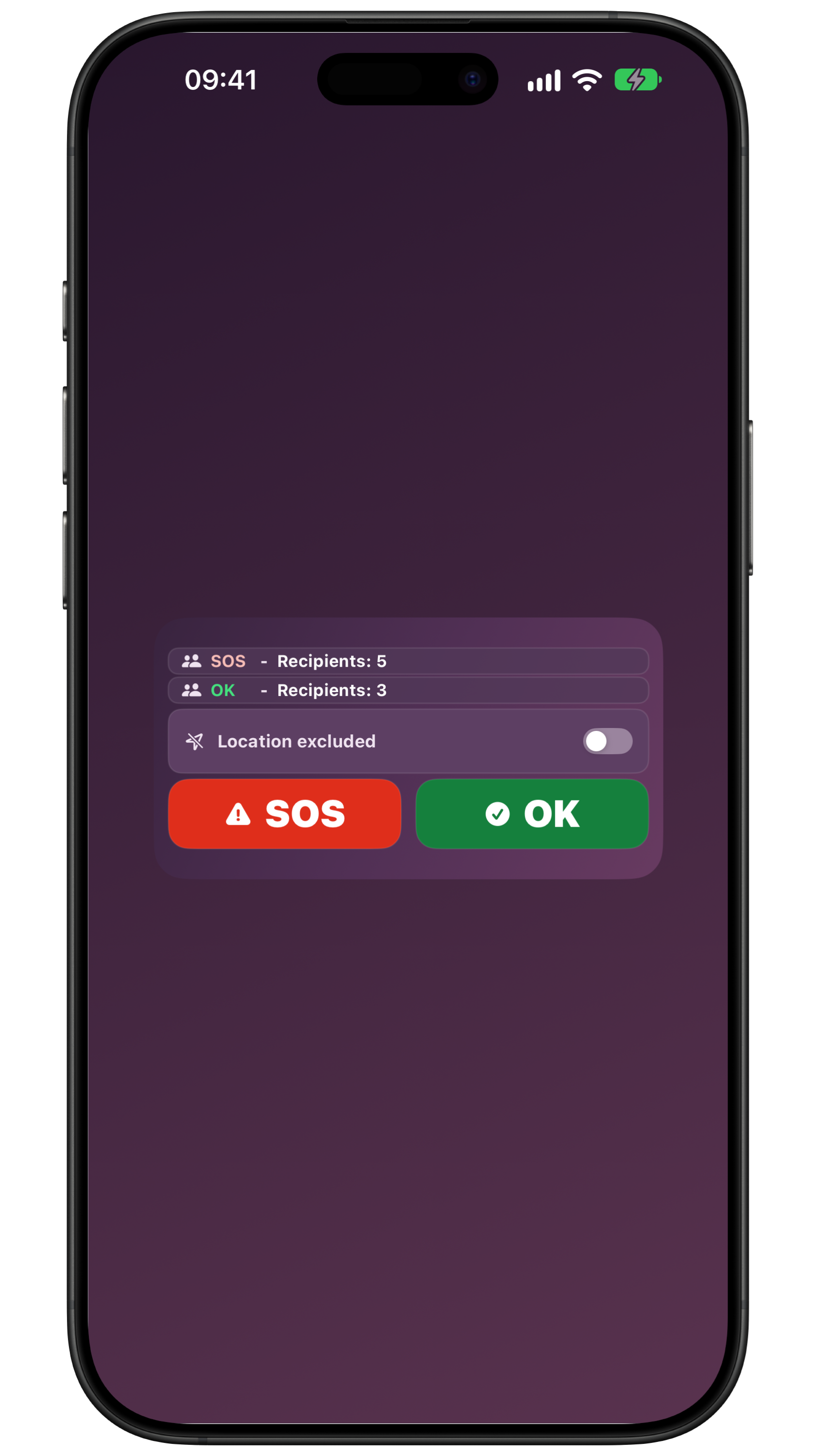
The manual describes five variants: Combined wide, SOS square, SOS wide, All OK square and All OK wide. They are not five independent channels. They are different ways to reach actions that remain controlled by the app settings.
Before adding one, decide who will use the phone, which Home page feels familiar and which signal is appropriate. To separate an alert from reassurance, see the guide to confirmation with a countdown.
iPhone: add the widget from Home screen
Apple says to go to the Home screen and touch and hold the background until the apps jiggle. Tap Edit, then Add Widget, choose My Safe Circle and an available size, then tap Add Widget and Done.
Follow the labels on your own iPhone. Apple can change names and placement between versions and languages. If My Safe Circle is absent from the gallery, check installation, updates and opening the app before deciding that the widget is unavailable.
Place it on the page the person already recognises. Do not promise a route from the Lock Screen: this tutorial covers Home and the next step inside the app, with the phone in the state the system requires.
Android: add and size the widget
Google says to touch and hold an empty space on the Home screen and tap Widgets. Find the app that offers the widget, tap it to see the list, touch and hold the widget, then drag it to the desired position.
Some phones show different variants or sizes. After placing it, touch and hold the widget to see whether an outline with dots appears, and drag the dots only if your device allows resizing.
Steps can vary with manufacturer, launcher and Android version. Record what you see on the real phone rather than copying instructions from another model. Android’s official guide covers Home management; the My Safe Circle manual explains what each variant means.
Choose the variant that fits the person
Combined wide shows SOS and All OK together and uses a shared location control in the widget. SOS square is compact and uses global SOS recipients and widget settings. SOS wide makes recipients and the location control visible.
All OK square uses the recipients or group, message and location selected for that widget. All OK wide shows a summary and location control. In Settings > Quick widgets you prepare the behaviour without confusing reassurance with a request for help.
For tremor or reduced vision, visible surface, contrast and distance from opposite actions all matter. Choose one primary variant, keep a backup and let the person decide which one is easiest to recognise.
Test the tap, confirmation and cancel
Every variant opens My Safe Circle on a prepared confirmation containing action, recipients, message and location. SOS and All OK show a countdown before sending. The time allows an accidental tap to be stopped and the outgoing action to be read.
Run an announced, non-urgent test: tap the widget, check the summary, send only an agreed signal or cancel during the countdown. Make sure the recipient can recognise the test and nobody treats it as an emergency.
Repeat with the phone unlocked and with its normal lock state, checking what the system actually permits. One test does not prove that every future send will be delivered or read. For a wider routine, connect the test to a family plan without surveillance.
The widget countdown lasts 10 seconds: send now or cancel, but do not edit recipients, message or location on that screen. Leaving the app, locking the phone or opening a notification during the countdown cancels the attempt. Configure the widget first; the editable 2.3 Home flow is separate.
Keep a backup route
The widget is not a My Safe Circle Lock Screen widget and does not replace the phone access it requires. My Safe Circle does not detect falls, illness or other events, and it does not decide to send SOS without a person’s choice.
When internet is unavailable, the app may keep the command on the device and try when the network returns, within system limits. This is not an automatic offline SMS, and until you see a final outcome you should not assume contacts were reached.
Checklist: familiar Home page, agreed variant, current recipients, checked message and location, countdown tested, cancel understood, network and battery checked, call or local number available. In immediate danger, contact emergency services directly.
Frequently asked questions
Does the widget send SOS as soon as I tap it?
No. The widget opens a 10-second countdown. Send now or cancel; that flow does not edit recipients, message or location.
Can I use the widget from the Lock Screen?
This tutorial documents the Home widget. It does not promise a My Safe Circle Lock Screen widget that sends while the phone is locked.
Does the widget detect a fall or send SMS without a network?
No. It does not detect events or send automatic offline SMS. Check the network and keep a human route or local emergency number.
Sources consulted
Technical and safety information was checked against the following official sources.
- Apple: add widgets on iPhone
- Android: add and resize widgets
- My Safe Circle manual: quick widgets
- My Safe Circle: features and limits
Guide from the My Safe Circle team, checked on 9 September 2026 against official Apple and Android instructions and the app manual. Labels can vary by version, language, model and launcher. My Safe Circle flows rechecked against the code and manual on 9 October 2026; the indicated 2.3 changes remain a preview.
PREPARE THE ROUTE
A visible widget, a deliberate confirmation.
Set up the widget together and test the route without creating a false alarm.
Explore My Safe CircleThe widget is not an emergency service, does not detect falls or other events, does not send automatic SMS while offline, and cannot guarantee access, sending, delivery, reading or action. Call the local emergency number in immediate danger.